A Microphone is required for your exam so the proctor can hear you. If your microphone is not working, try some of the troubleshooting steps below.
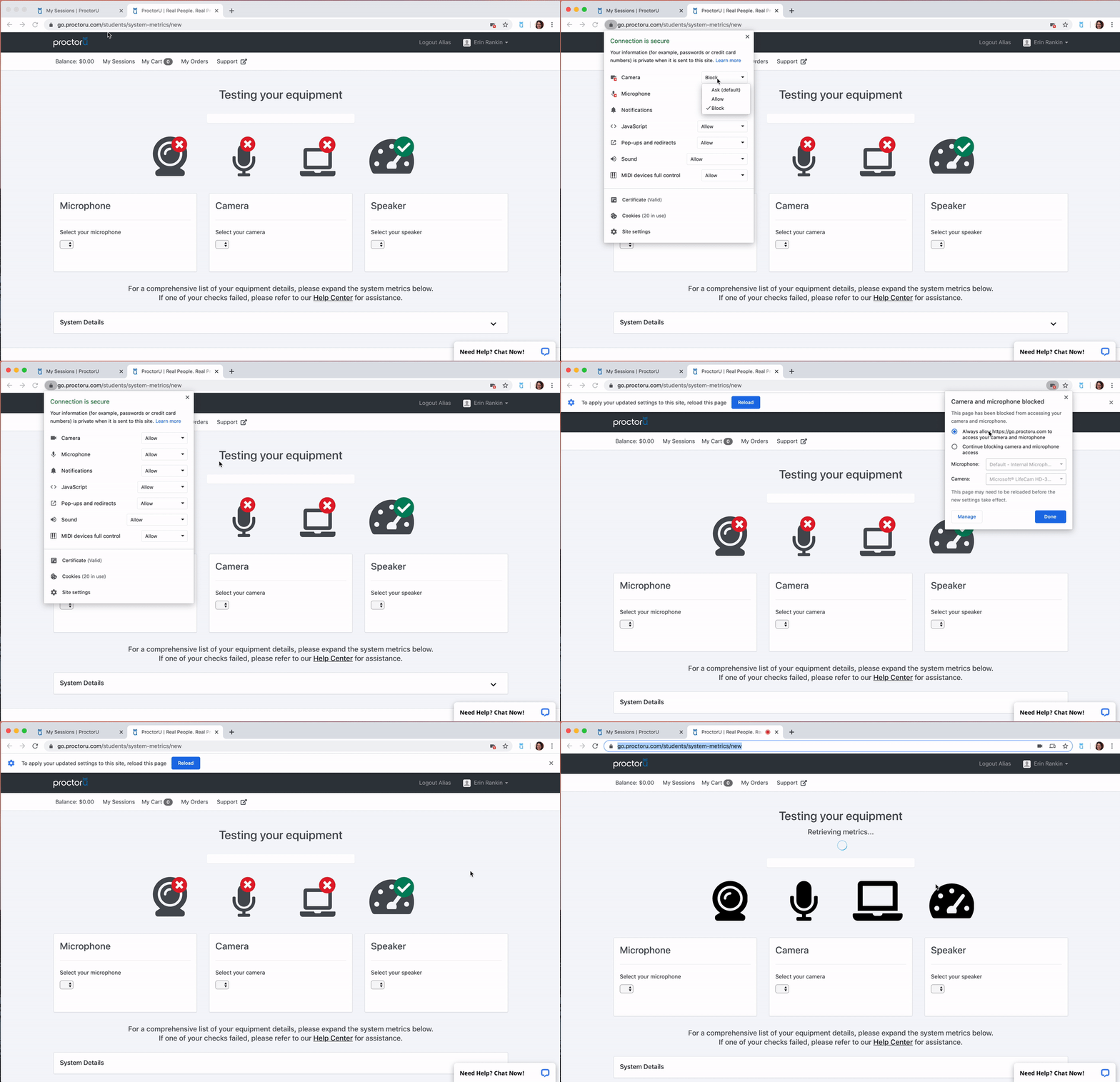
Chrome
- Click the
 Lock Icon on the top left
 - Find Microphone
 and set to Allow
 - Refresh the page
Firefox
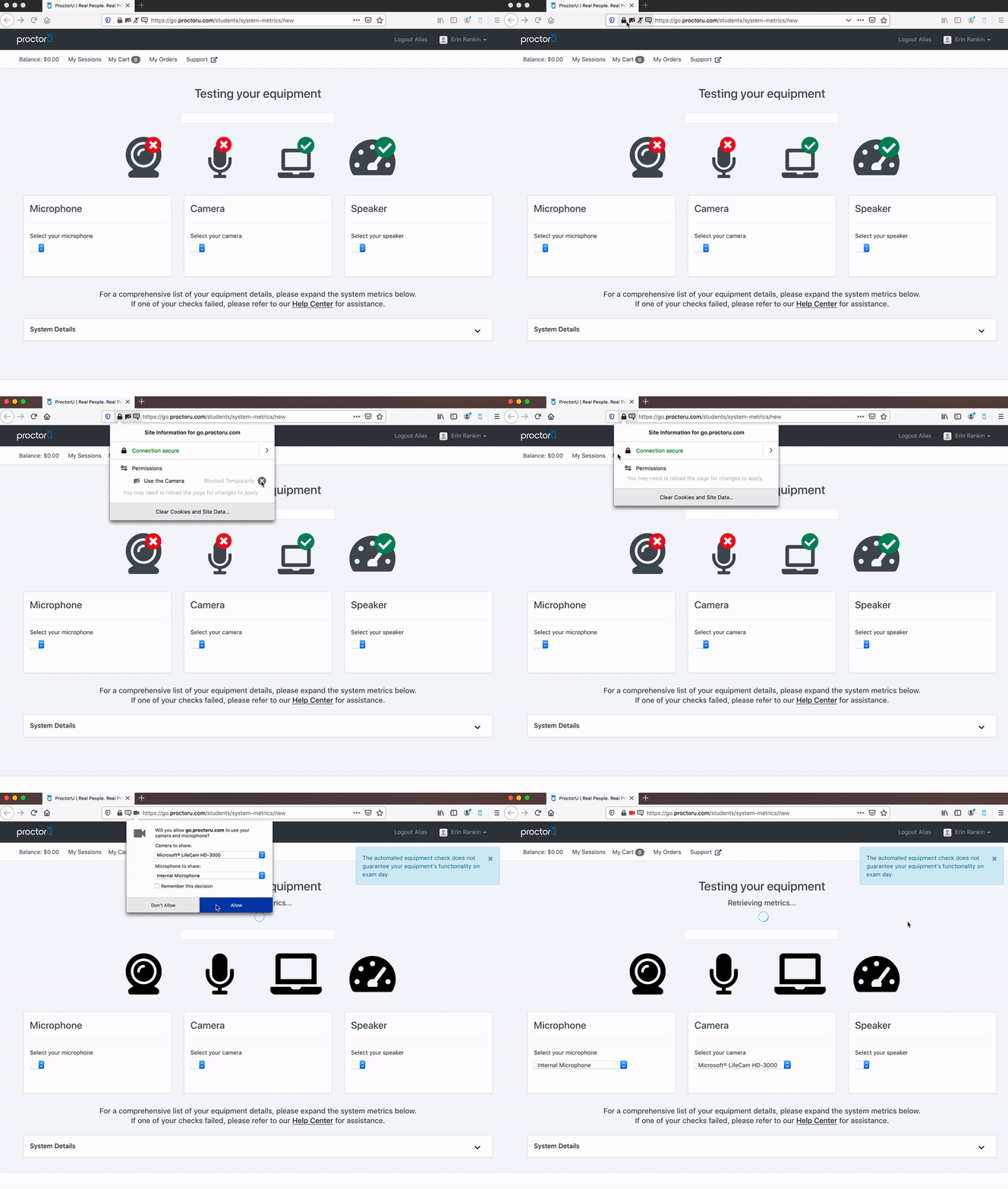
- Click the lock
 icon
icon - Click the X next to the Microphone settings if it's blocked

- Refresh the page
- Click Allow when prompted
Windows
- Right-click the Sound Icon
 in the lower right of your screen
 - Click Open Sound Settings
- Open Sound Control Panel
- Click the Recording tab
- Ensure a microphone is enabled by right-clicking the device you want to check
- Then click Enable
- Ensure the microphone's volume is turned up and unmuted up by right-clicking, then click Properties
- Click the Levels tab
- Increase Volume and Unmute Microphone if applicable
Click Here for additional Windows Microphone Troubleshooting
Windows Microphone Privacy Settings
- Go to Start

- Open Settings

- Open Privacy

- Select Microphone

- Under Allow Apps To Access Your Microphone, turn the switch On
Mac
- Click the Apple Icon

- Open System Preferences
- Open Sound
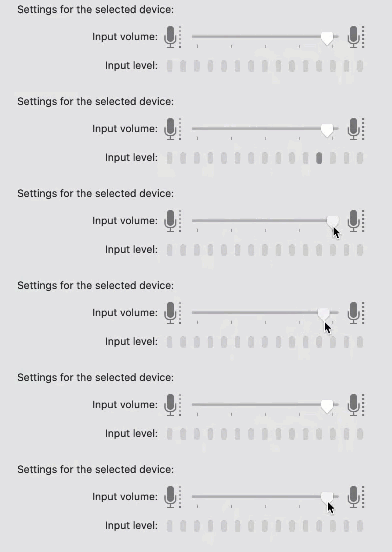
- Click the input tab
- Select the Correct Microphone if multiple active
- Check that the selected microphone is picking up the sound by speaking out loud and referencing the input level bar. Try adjusting the input volume bar.
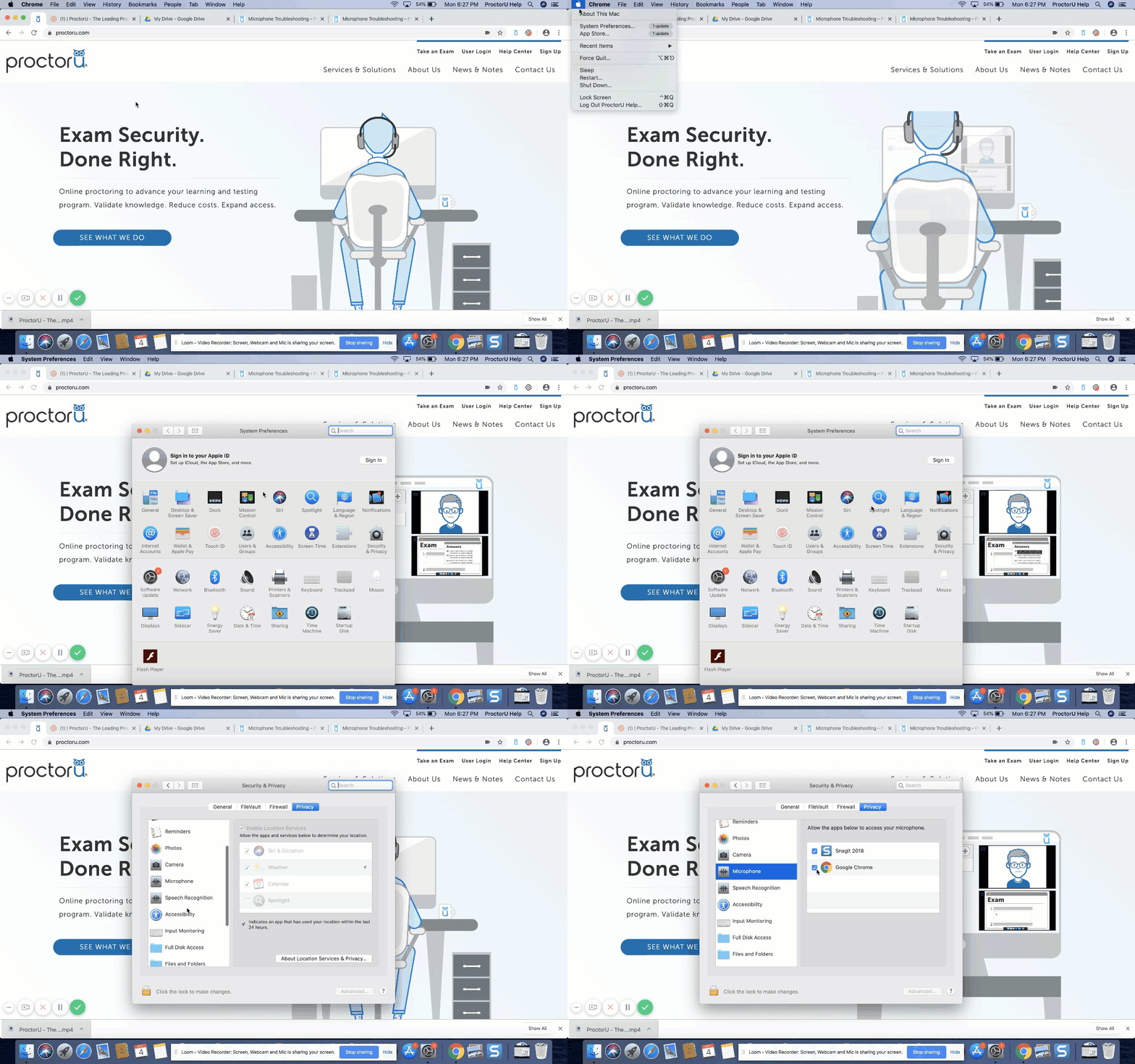
Security and Privacy Settings
- Click the Apple Icon
- Open System Preferences
- Open Security and Privacy
- Click the Privacy tab
- Select Microphone
 on the left side
 - Enable the checkbox next to the browser that you're using
- Restart your browser for changes to take effect and try again
Need to test your equipment? Click here!